
Open Socks-Proxy InternetConnection over SSH
Lokaler Rechner : Windows mit Firefox
Linux-Server darf ohne einen Proxy ins Internet:
- You open an SSH connection to a remote server. As you open that connection, your SSH client will also open a local TCP port, available only to your computer. In this example, I’ll use local TCP port :1337.
- You configure your browser (Chrome/Firefox/…) to use that local proxy instead of directly going out on the internet.
- The remote SSH server accepts your SSH connection and will act as the outgoing proxy_/vpn_ for that SOCKS5 connection.
To start such a connection, run the following command in your terminal.
$ ssh -D 1337 -q -C -N user@ma.ttias.beWhat that command does is;
-D 1337: open a SOCKS proxy on local port:1337. If that port is taken, try a different port number. If you want to open multiple SOCKS proxies to multiple endpoints, choose a different port for each one.-C: compress data in the tunnel, save bandwidth-q: quiet mode, don’t output anything locally-N: do not execute remote commands, useful for just forwarding portsuser@ma.ttias.be: the remote SSH server you have access to
Once you run that, ssh will stay in the foreground until you CTRL+C it to cancel it. If you prefer to keep it running in the background, add -f to fork it to a background command:
ssh -D 1337 -q -C -N -f user@ma.ttias.beUse SOCKS proxy in Chrome/Firefox
Next up: tell your browser to use that proxy. This is something that should be done per application as it isn’t a system-wide proxy.
In Chrome, go to the chrome://settings/ screen and click through to Advanced Settings. Find the Proxy Settings.
In Firefox, go to Preferences > Advanced > Network and find the Connection settings. Change them as such:
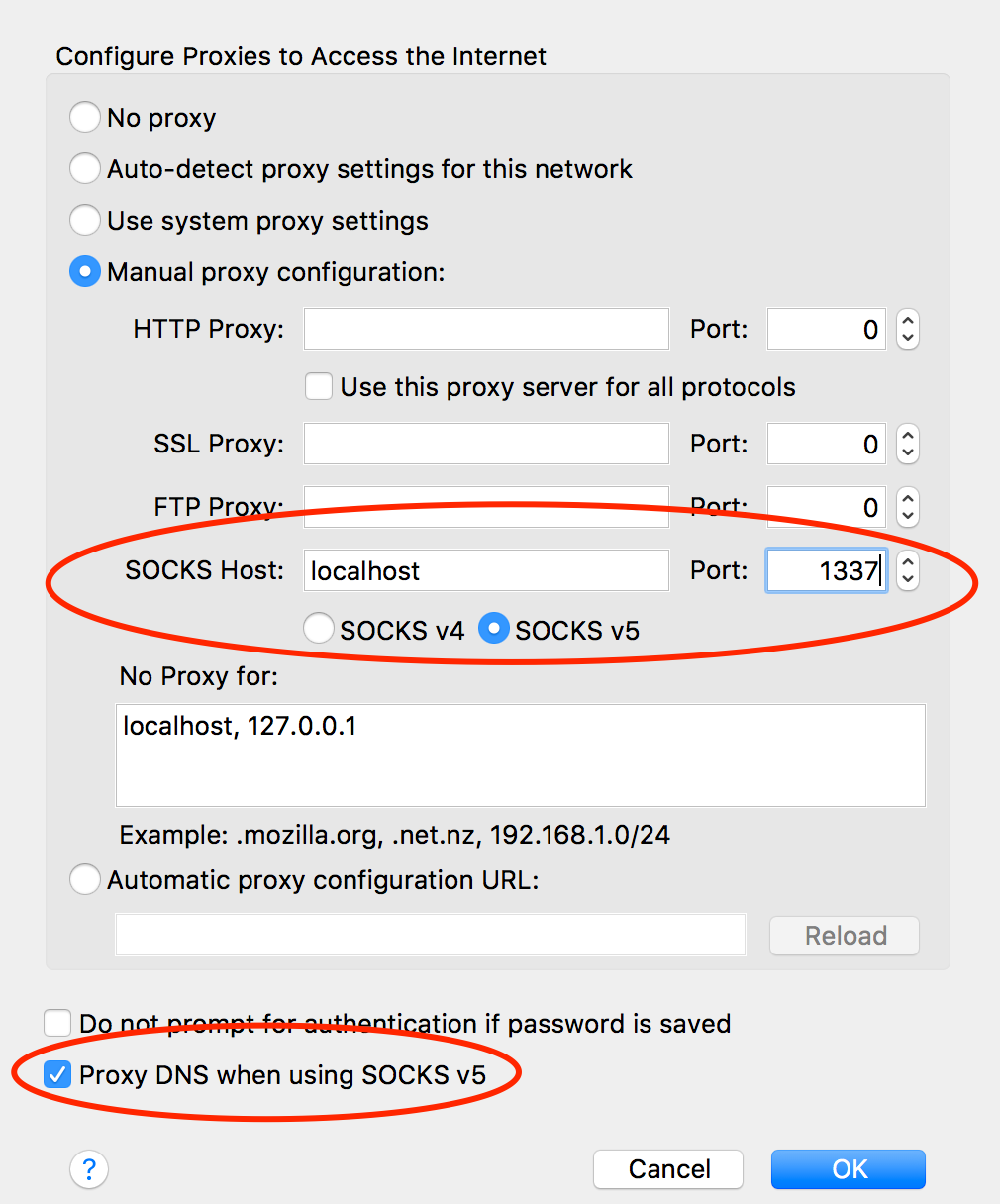
From now on, your browser will connect to localhost:1337, which is picked up by the SSH tunnel to the remote server, which then connects to your HTTP or HTTPs sites.